

🧪 Preview (Beta)
Suitable for production read workloads.
Most PostgreSQL driver features are supported; some PostgreSQL features may not yet be tested and could behave differently or not work in some tools.
Suitable for production read workloads.
Most PostgreSQL driver features are supported; some PostgreSQL features may not yet be tested and could behave differently or not work in some tools.
ℹ️ Network access requirement
ThoughtSpot does not support mutual TLS (mTLS). In most cases, connections work without additional setup.
If you encounter connectivity issues, your ThoughtSpot IP address may need to be allowlisted by Firebolt. See Allowlisting ThoughtSpot IP Addresses.
ThoughtSpot does not support mutual TLS (mTLS). In most cases, connections work without additional setup.
If you encounter connectivity issues, your ThoughtSpot IP address may need to be allowlisted by Firebolt. See Allowlisting ThoughtSpot IP Addresses.
Step-by-Step Guide
- Select Data workspace tab.
- Select the Connections section in the left navigation bar, and then press the Create connection button.
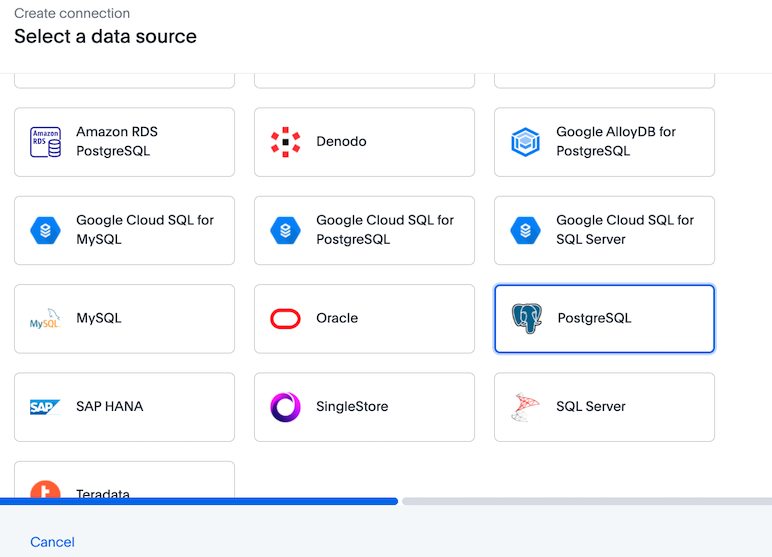
- Find and select the PostgreSQL tile as the connection type and click Next.
-
Create a name for your connection, a description (optional) then enter the connection details for your Firebolt data source:
Host details
When using Firebolt’s PostgreSQL-compatible interface, the host URL is based only on the region. Host URL Format:pg.<region_name>.app.firebolt.io<region_name>— The region your account is hosted in (e.g., us-east-1) How to Find Your Region: Use this SQL query in Firebolt to get the region for your account:User field details
Unlike traditional PostgreSQL databases, Firebolt uses a composite string in the User field to specify:- Account name
- Engine name
- Service account ID
:separators in a single string:For example, if your account name ismy_account, your engine name isanalytics_engine, and your service account id isfbcid_xxxyou would entermy_account:analytics_engine:fbcid_xxx. - Click Next.
- Select tables and the columns from each table, and then select Create connection.
- A message appears indicating the number of tables and columns that will be added to your connection.
- Select Create connection. Once the connection is added, you can query the Firebolt tables selected via Spotter straight away.
Allowlisting ThoughtSpot IP Addresses
ThoughtSpot does not support mutual TLS (mTLS). If you experience connectivity issues when connecting ThoughtSpot to Firebolt, your ThoughtSpot IP address may need to be allowlisted by Firebolt.Get your ThoughtSpot IP address
- During the connection setup, locate the Connection tips panel on the right side of the screen.
- Copy the IP address displayed.
Request allowlisting
Contact Firebolt Support and request to allowlist the ThoughtSpot IP address for your account. See more about how to contact Firebolt Support and the severity guidelines. Include the following information in your request:- Your name and email address
- Your organization name
- Name of the tool you want to connect (ThoughtSpot in this case)
- The ThoughtSpot IP address to allowlist