

How to create Support tickets with correct severity (In App or Slack)
There are three ways you can create a Support ticket with Firebolt Support Engineering. Support tickets can be created via the Firebolt UI (In App), via email, or via Slack (for eligible customers). By default, all support cases are created as Severity 3 (Tolerable) unless you explicitly select a different severity. You can choose the correct severity only when creating tickets via Firebolt UI (In App) or Slack. Please note:- Over weekends, only Severity 1 and Severity 2 cases are handled by the On-Call Support Engineer.
- Lower-severity cases are handled during weekdays only.
- Slack messages are attended during weekdays unless you explicitly mark them as Severity 1 or 2 using the severity emoji (described below).
Creating Tickets via Firebolt UI (In App)
You need to log in to the Firebolt UI and click on the “?” icon, highlighted in the image below: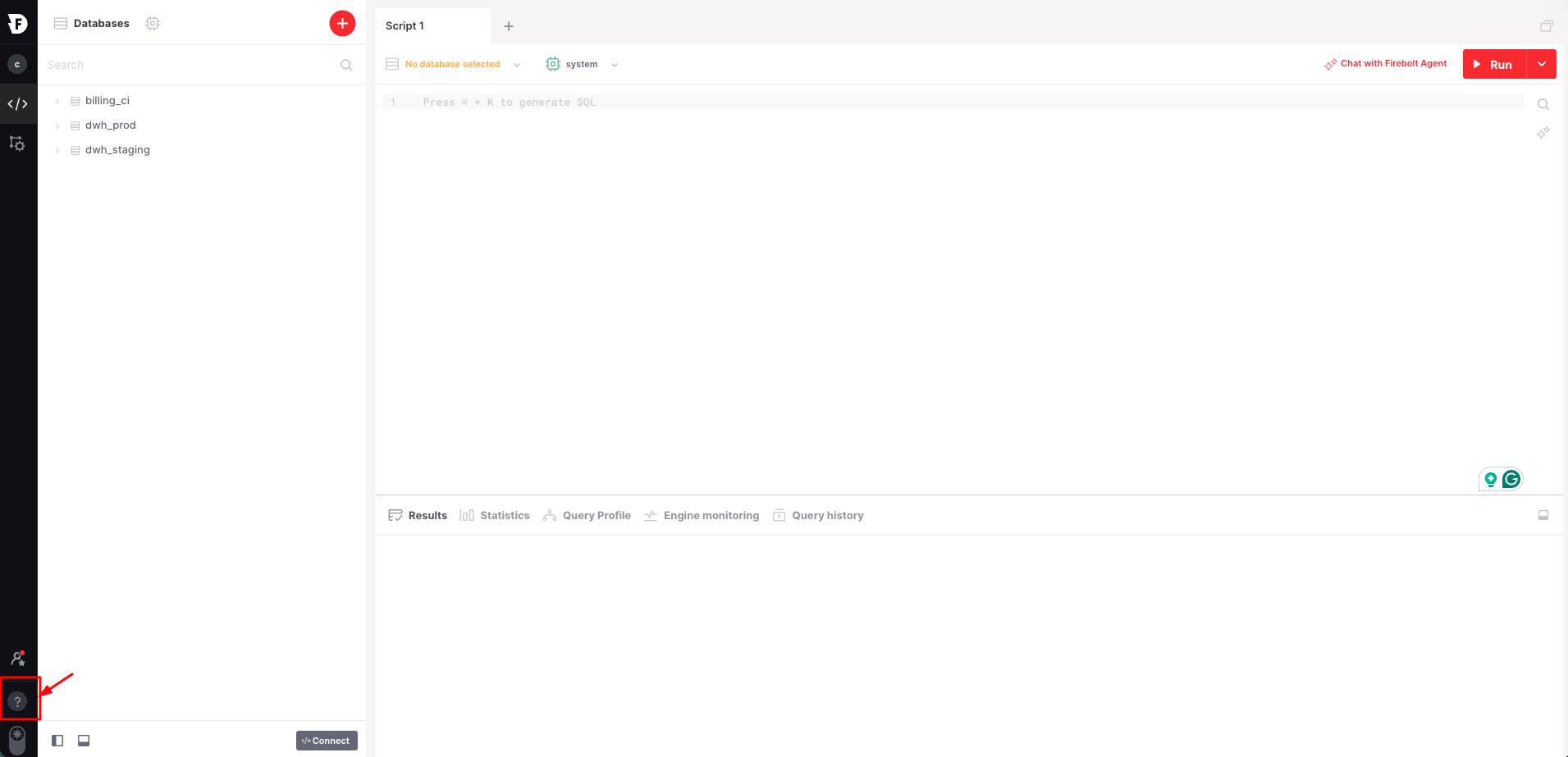
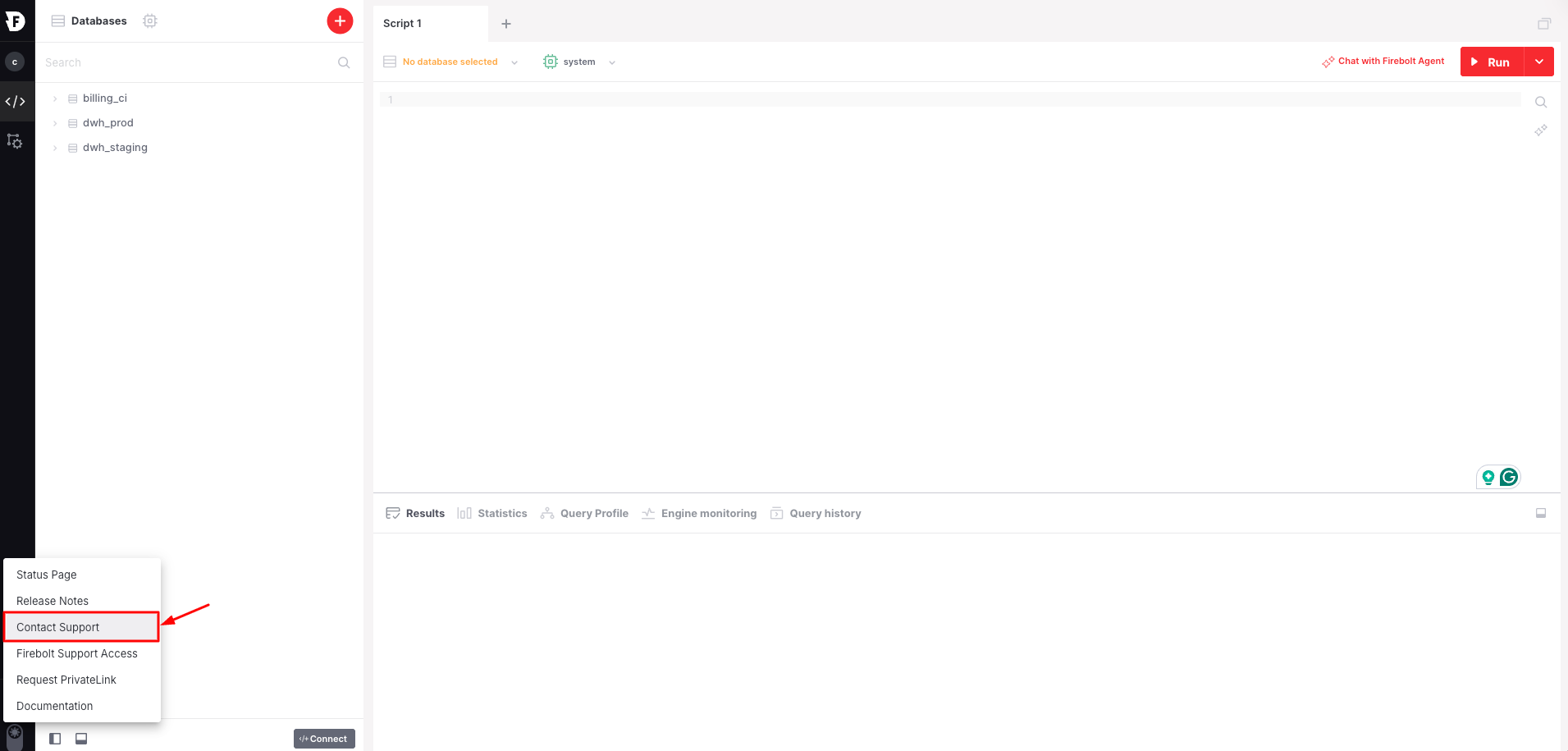
- Sev1 = Critical
- Sev2 = Urgent
- Sev3 = Tolerable
- Sev4 = Question

Creating Tickets via Email
You can email support@firebolt.io with all relevant details. Make sure to clearly explain the urgency of the issue; otherwise, the case will be treated as Severity 3 (Tolerable) by default.Creating Tickets via Slack chat (eligible customers only)
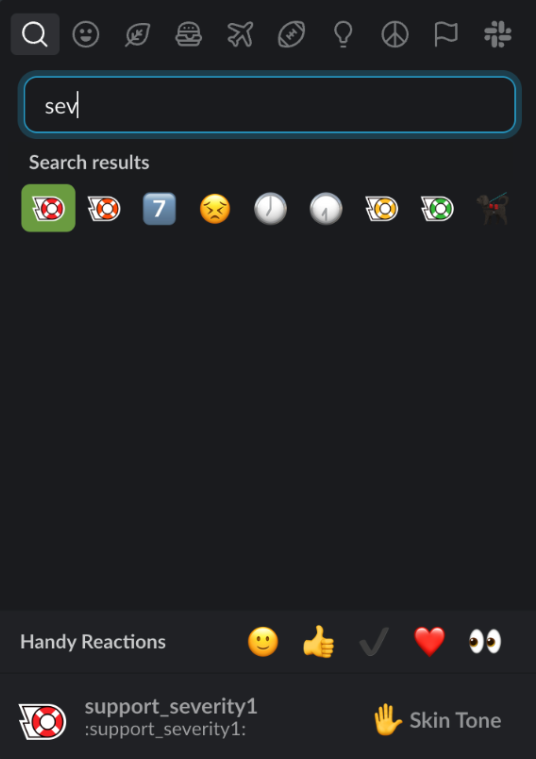
If you are eligible to receive support via Slack, you can post your issue or question directly in your shared Slack channel with Firebolt. After posting your message, if you want to assign a specific severity, select the appropriate severity emoji:- Open the emoji picker
- Type “sev”
- Choose the relevant severity emoji as shown below
Severity Emoji Mapping
- Severity 1 – 🔴 Red lifebuoy ring
- Severity 2 – 🟠 Orange lifebuoy ring
- Severity 3 – 🟡 Yellow lifebuoy ring
- Severity 4 – 🟢 Green lifebuoy ring
To learn more about severity definitions and associated SLAs, click here. This will help you understand the expected response times for your support cases.