

The Firebolt Agent uses industry-leading, enterprise-grade Large Language Models (LLMs) to provide automated insights. All data is encrypted in transit. In accordance with our privacy commitment, customer data processed by this feature is not used to train the foundation models.
Enable Firebolt Agent
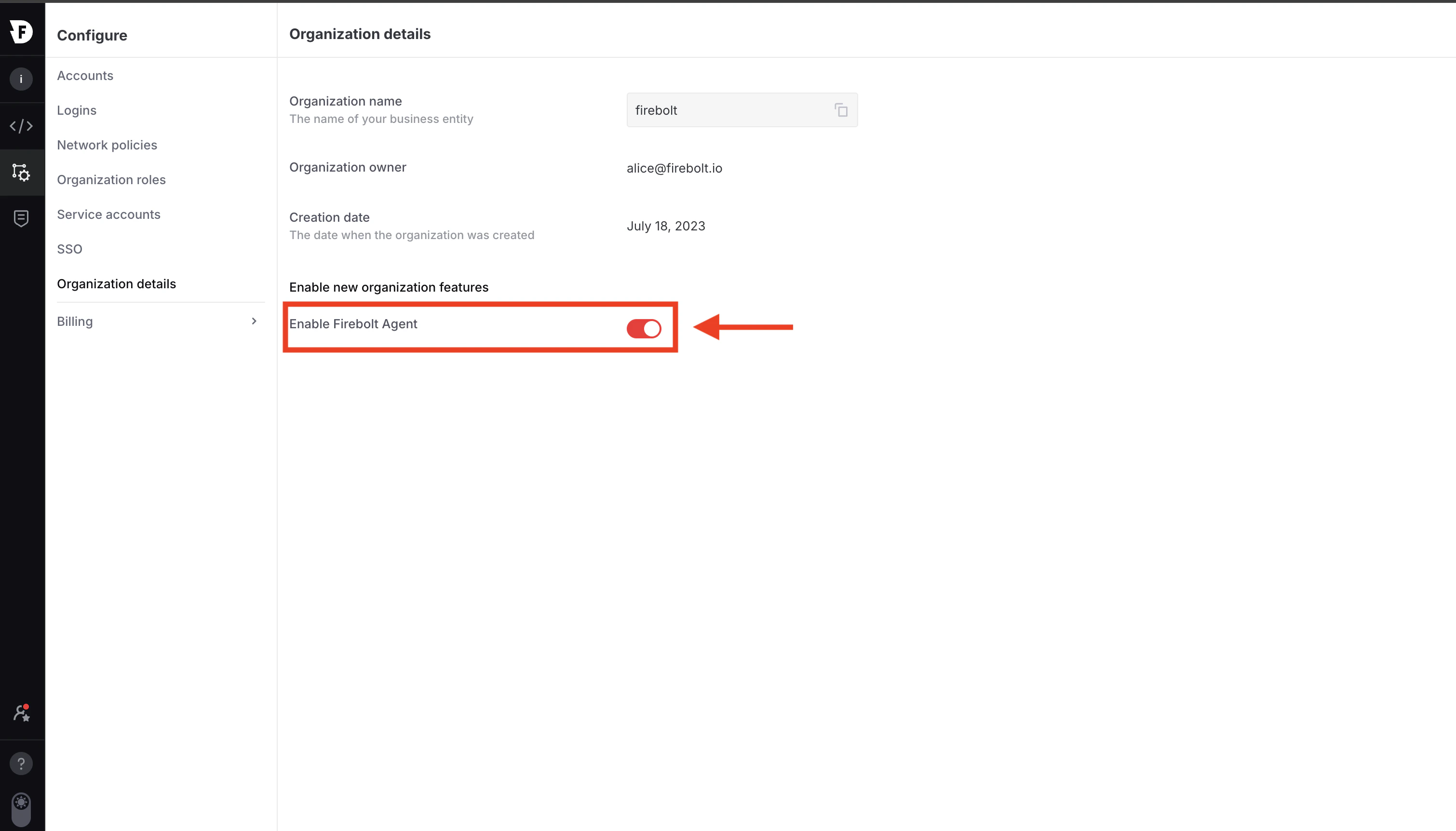
Firebolt Agent is disabled by default. An organization admin must enable it before anyone in the organization can use it. Once enabled, every user in the organization can access the agent from the query editor — no additional per-user configuration is required. To enable Firebolt Agent:- Select the Configure icon in the left navigation pane.
- Select Organization details.
- Under Enable new organization features, toggle on Enable Firebolt Agent.
Chat with Firebolt Agent
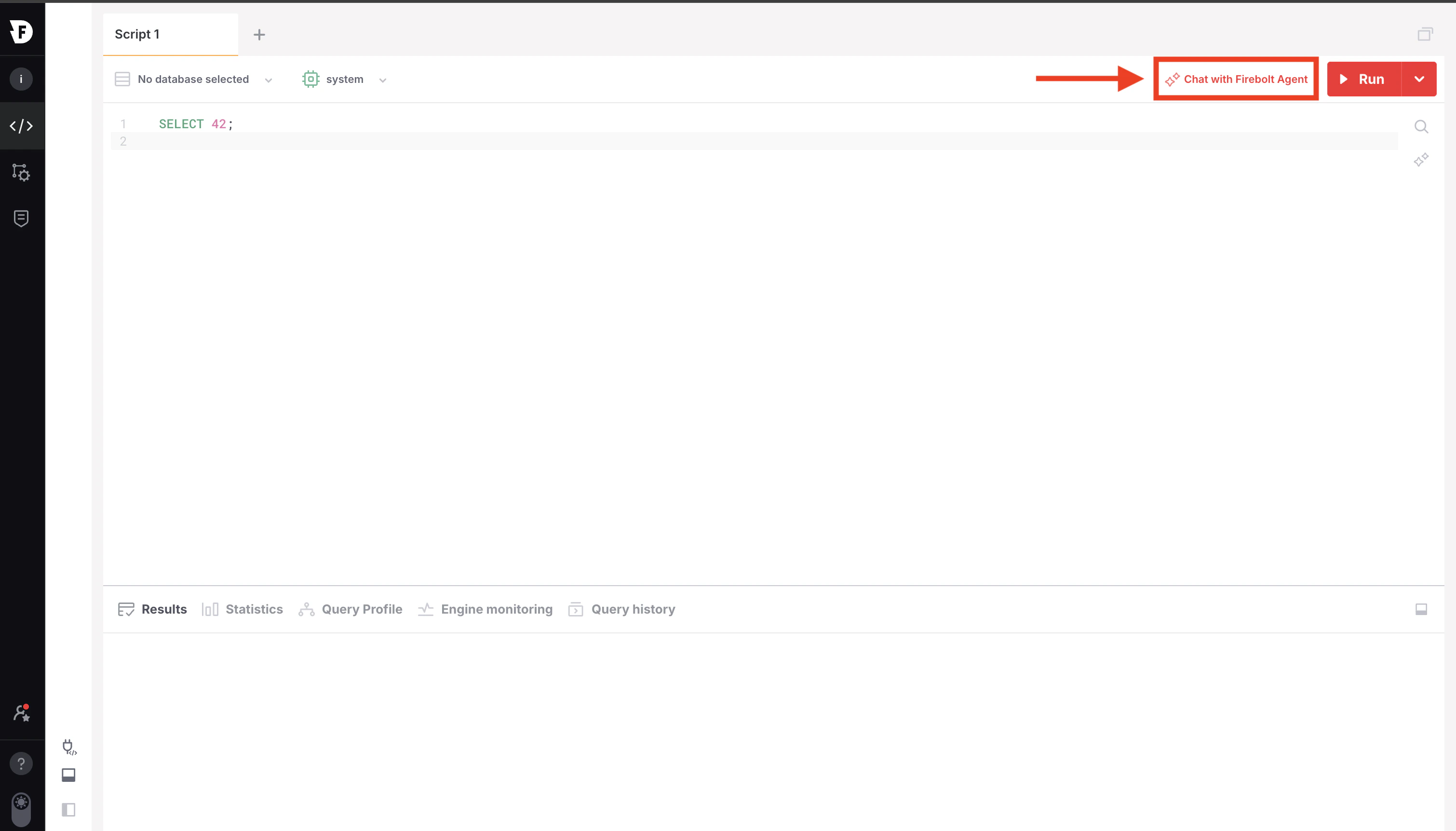
The chat panel provides a conversational interface where you can ask questions and get answers grounded in Firebolt’s official documentation. The agent maintains context within a conversation, so you can ask follow-up questions to refine or expand on a previous response.Open the chat panel
- Open the Develop Space and navigate to the query editor.
- Select Chat with Firebolt Agent in the top-right toolbar, next to the Run button.
Ask questions
The chat panel opens on the right side of the editor. Type your question or request in the input field at the bottom of the panel. The agent responds with relevant documentation, examples, and step-by-step instructions.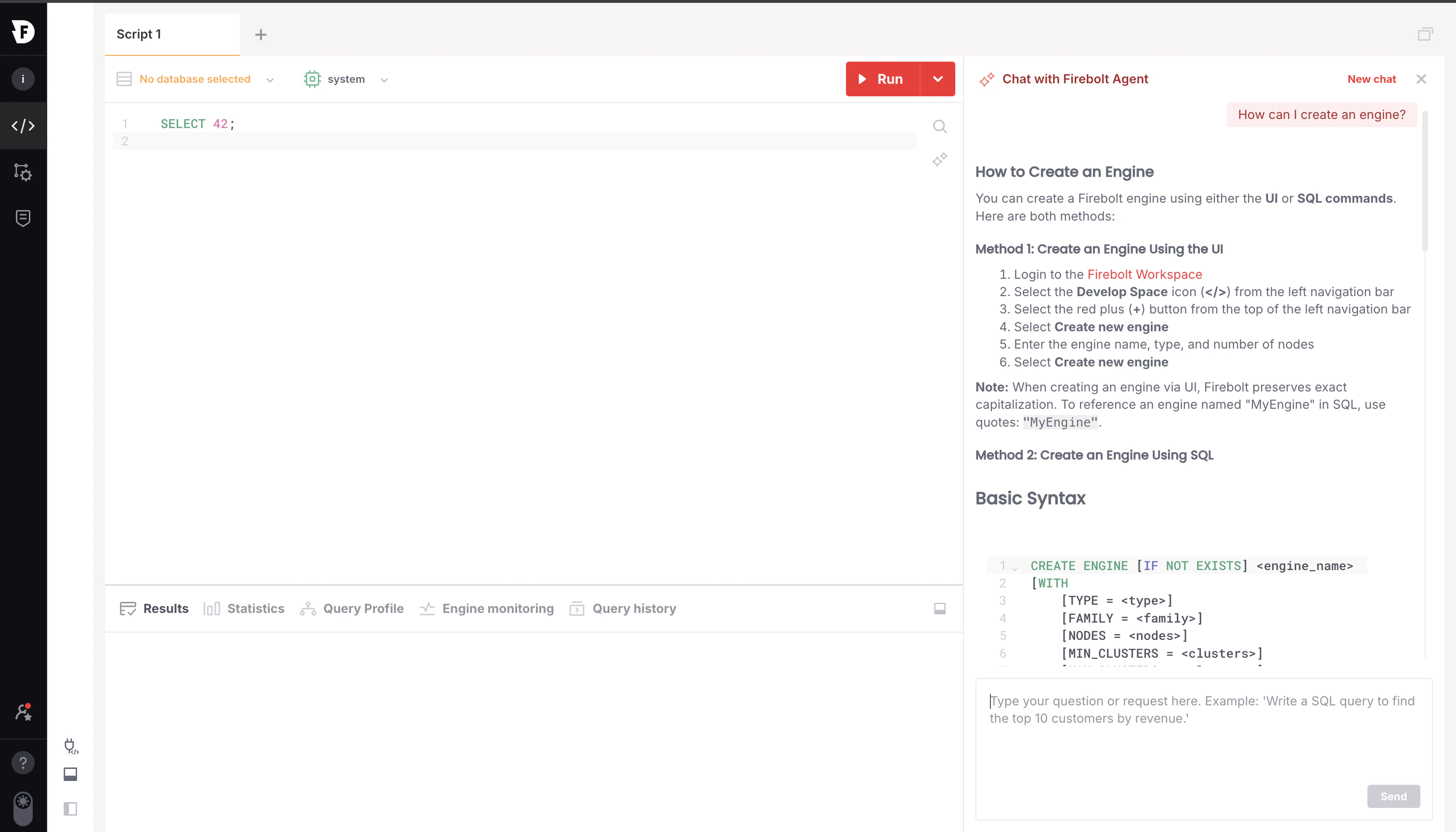
- Firebolt features, configuration, and best practices
- SQL functions and syntax
- Platform troubleshooting and issue resolution
- Query optimization strategies
- “How do I create an aggregating index?”
- “What is the difference between a dimension and a fact table in Firebolt?”
- “Why is my query running slowly on a large table?”
- “Show me the syntax for COPY FROM with error handling.”
Generate SQL from natural language
Instead of writing SQL from scratch, you can describe what you need in plain English and let the agent generate the query for you. This works well for a wide range of queries, includingSELECT statements, JOIN operations, aggregations, window functions, and filtering logic. The agent is aware of your current database schema, so it can reference the correct table and column names in the generated SQL.
To generate SQL inline:
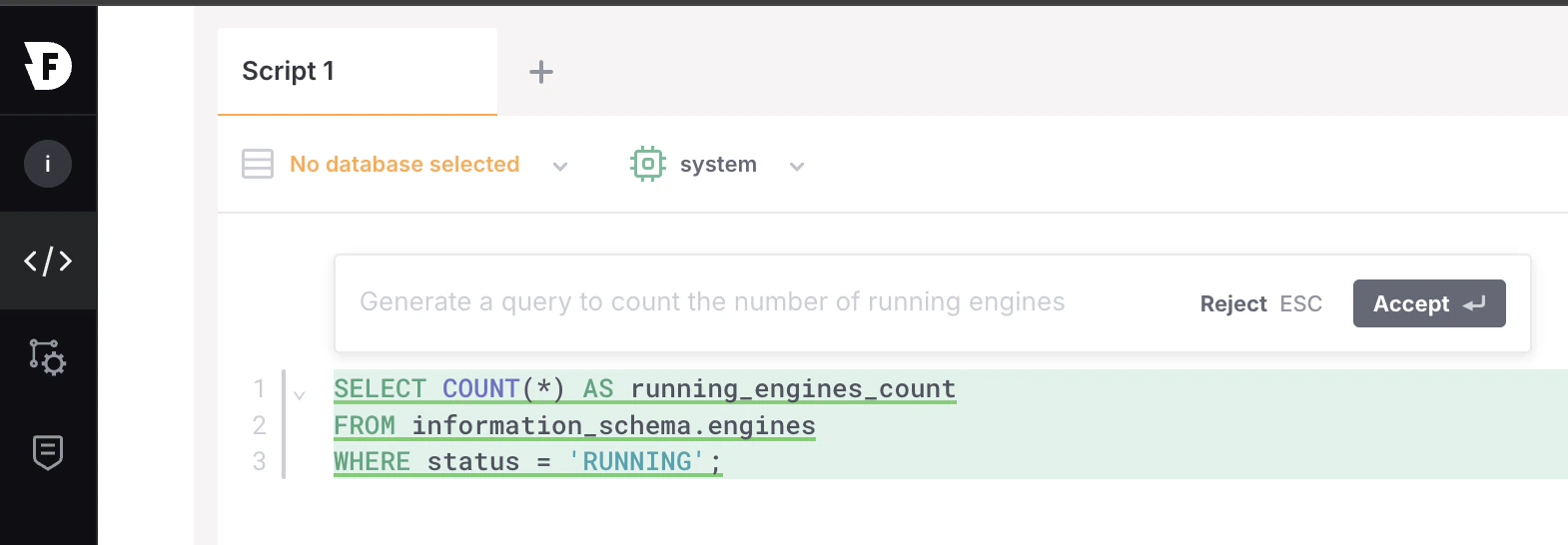
- Place your cursor in an empty line of the query editor. A hint appears: Press ⌘+K to generate SQL (or Ctrl+K on Windows/Linux).
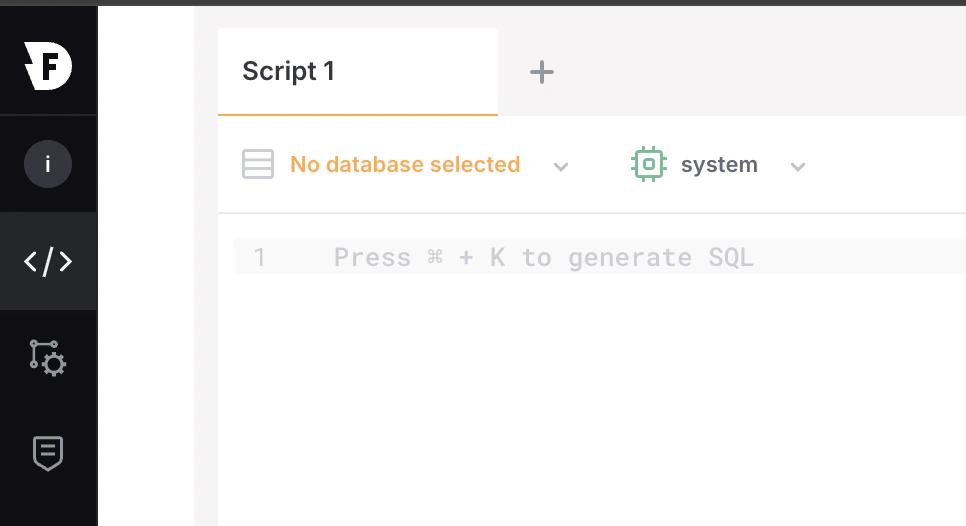
- Press ⌘+K (or Ctrl+K) and type a natural language description of the query you need.
- The agent generates a SQL query based on your description.
- Select Accept to insert the generated SQL into the editor, or press Esc to reject it.
- “Show the top 10 customers by total revenue”
- “Count active users per day for the last 30 days”
- “Find duplicate rows in the orders table based on order_id”
- “Calculate a 7-day rolling average of daily sales”
Always review the generated SQL before running it. The agent produces queries based on your schema and prompt, but you should verify that the logic, filters, and column references match your intent.
Fix SQL errors with AI
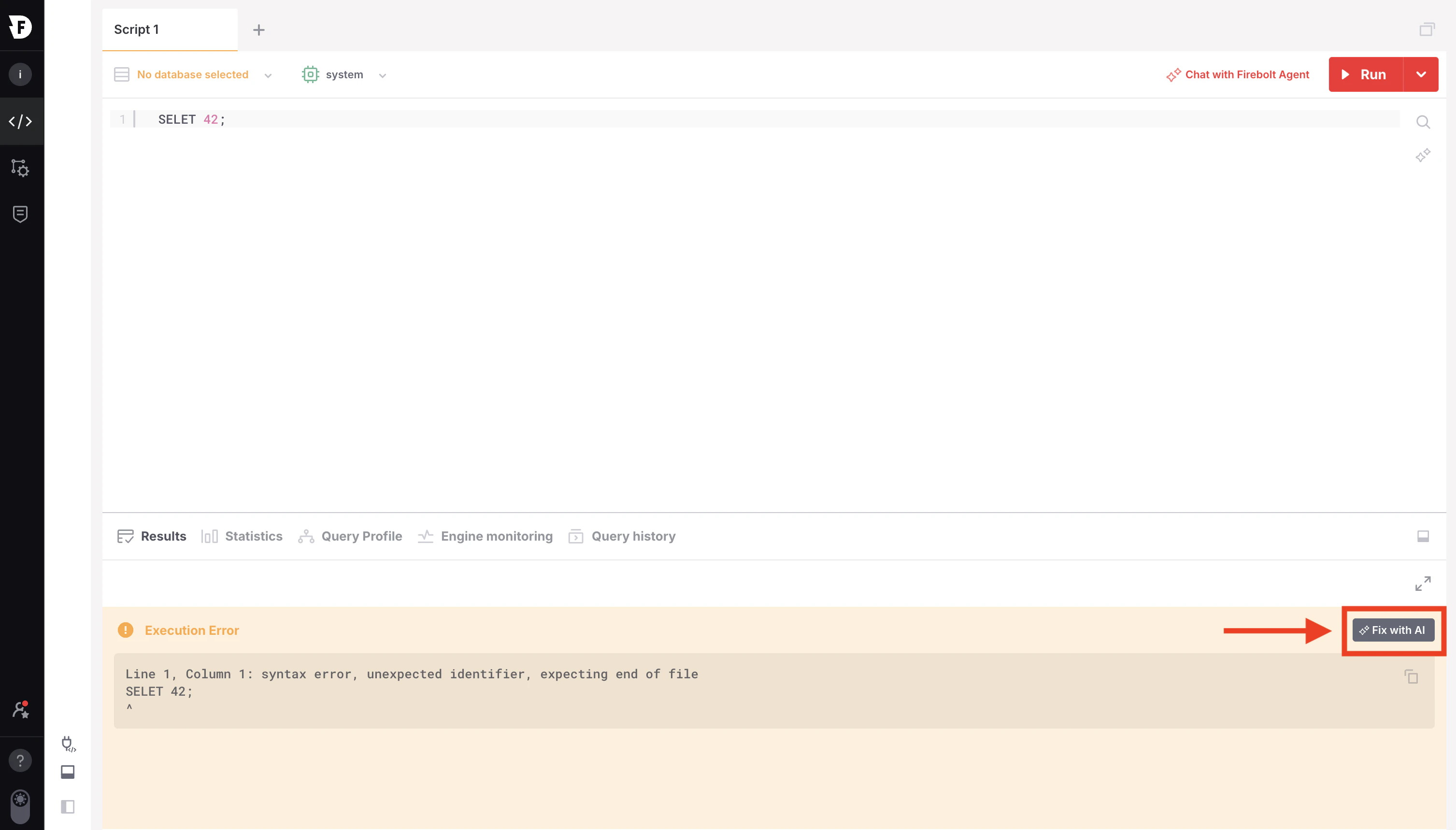
When a query fails with a syntax or execution error, the Firebolt Agent can analyze the error and suggest a fix. The agent reads the full error message and inspects the query to identify the root cause — whether it’s a misspelled keyword, an incorrect function signature, a missing clause, or a type mismatch. It then proposes a corrected version of your query with the changes highlighted. To fix a query with AI:- Run a query that produces an error. The error details appear in the Results panel.
- Select Fix with AI next to the error message.
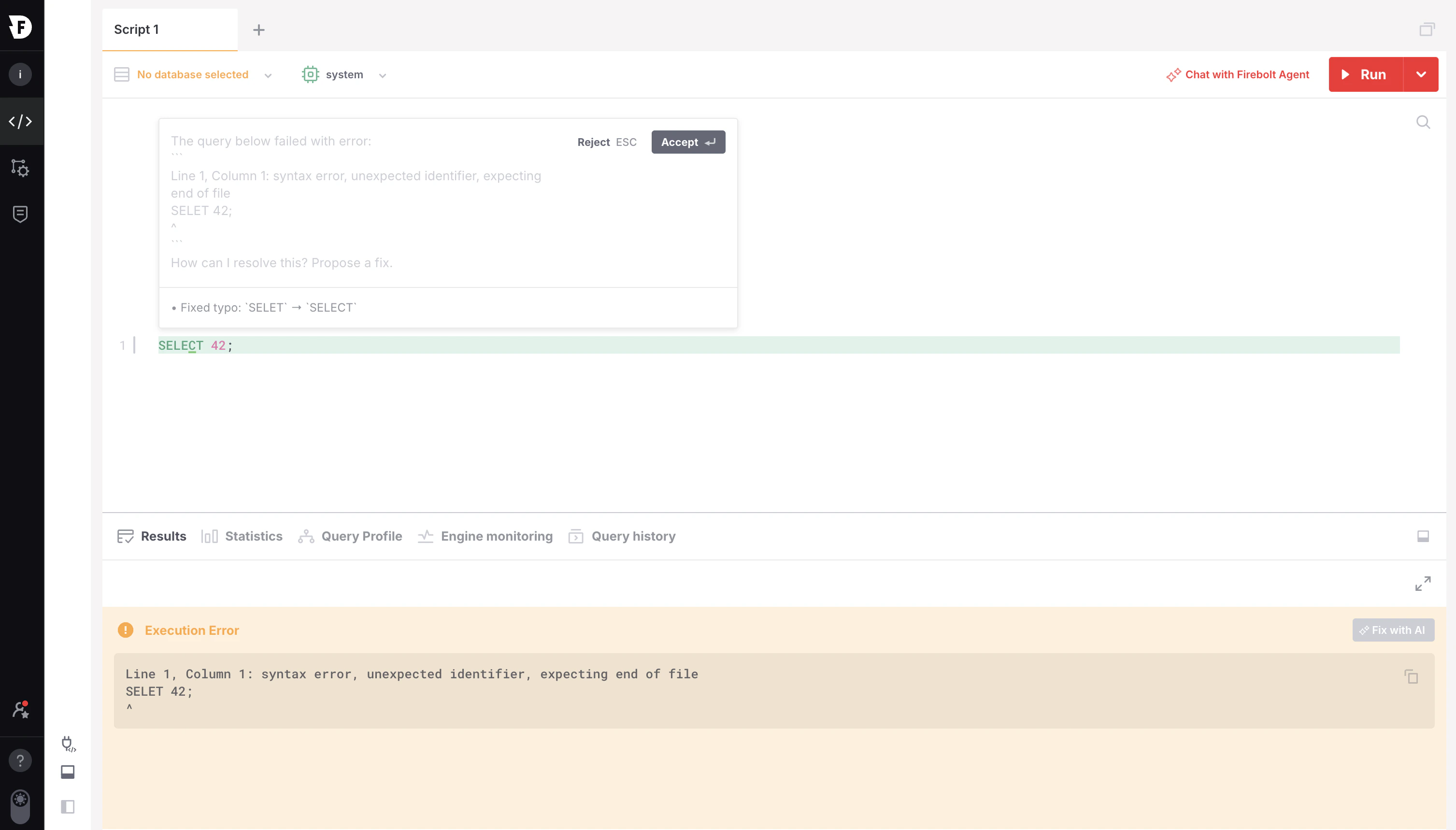
- The agent analyzes the error and suggests a corrected query. Changes are highlighted in the editor.
- Select Accept to apply the fix, or press Esc to reject it.
Tips for using Firebolt Agent
Keep the following in mind to get the most out of the Firebolt Agent:- Review generated SQL before running it. AI-generated queries are a starting point. Always verify that the logic, table references, and filters match your intent before executing.
- Use the right tool for the task. Use the chat panel for exploratory questions, documentation lookups, and troubleshooting. Use the inline shortcut (⌘+K / Ctrl+K) when you want to quickly draft a query without leaving the editor.
- Break complex requests into smaller steps. For multi-step queries or advanced logic, describe one piece at a time. You can generate a base query first, then ask the agent to add filters, joins, or aggregations.
- Be specific in your prompts. Include table names, column names, conditions, and expected output formats. The more context you provide, the more accurate the result.
- The agent does not access your data. Firebolt Agent uses your database schema and Firebolt documentation to generate responses. It does not read or return the actual data stored in your tables.
Related resources
- Getting started with AI – Call LLMs directly from SQL using Amazon Bedrock.
- Use AWS roles to access Bedrock – Configure IAM roles for secure Bedrock access.
AI_QUERY– Invoke a language model with a simple text prompt in SQL.AI_EMBED_TEXT– Generate text embeddings from SQL.