> ## Documentation Index
> Fetch the complete documentation index at: https://docs.firebolt.io/llms.txt
> Use this file to discover all available pages before exploring further.
> Learn about how to add and remove accounts in a Firebolt organization.
# Manage accounts
Your organization comes prepared with one account for your convenience. You can add more accounts, edit existing accounts, or delete accounts using SQL or in the UI.
To view all accounts, click **Configure** to open the configure space, then choose **Accounts** from the menu, or query the [information\_schema.accounts](/reference-sql/information-schema/accounts) view. For account-level settings and flags, query [information\_schema.account\_info](/reference-sql/information-schema/account_info).
## Create a new account
Creating an account requires the org\_admin role.
### SQL
To create an account using SQL, use the [CREATE ACCOUNT](/reference-sql/commands/data-definition/create-account) statement. For example:
```sql theme={"theme":{"light":"css-variables","dark":"css-variables"}}
CREATE ACCOUNT dev WITH REGION = 'us-east-1';
```
### UI
To create an account via the UI:
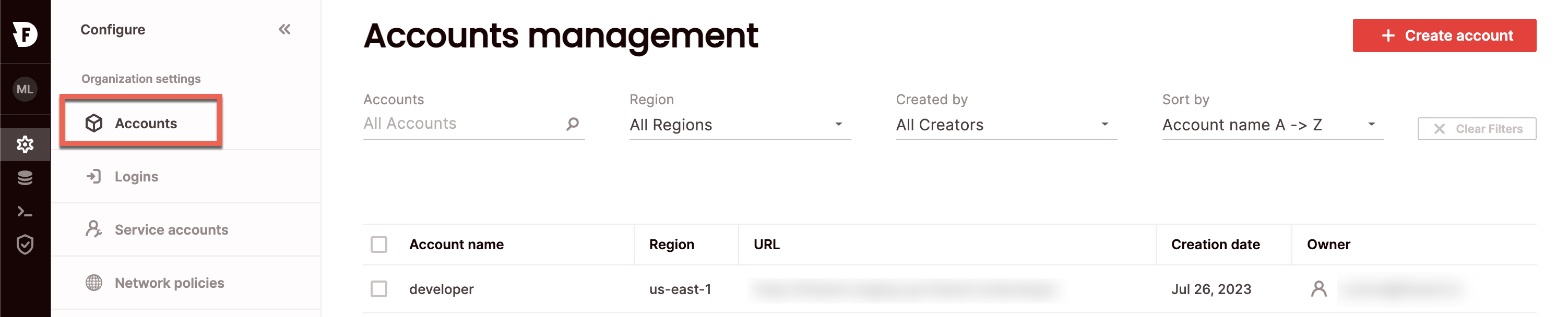 1. Click **Configure** to open the configure space, then choose **Accounts** from the menu.
2. From the Accounts management page, choose **Create Account**.
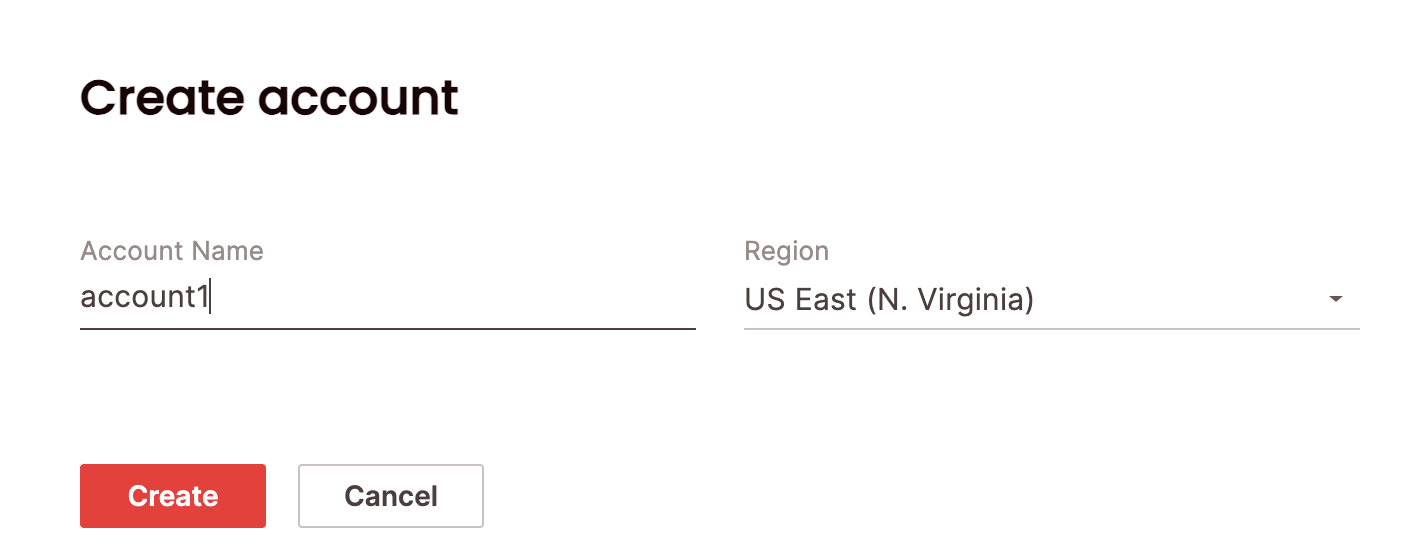
Type a name for the account and choose a region. You won't be able to change the region for this account later, so choose carefully.
3. Choose **Create**.
1. Click **Configure** to open the configure space, then choose **Accounts** from the menu.
2. From the Accounts management page, choose **Create Account**.
Type a name for the account and choose a region. You won't be able to change the region for this account later, so choose carefully.
3. Choose **Create**.
 Then you will see your new account on the **Accounts management** page.
There can be up to 20 accounts per organization and you can use `CREATE ACCOUNT` 25 times. If you have a need for additional account creations beyond this limit, contact [Firebolt Support](/managed-service/support) for assistance. Our team can provide guidance and, if appropriate, adjust your account settings to accommodate your needs.
## Edit an existing account
Editing an account requires the account\_admin or org\_admin role.
### SQL
To edit an existing account using SQL, use the [ALTER ACCOUNT](/reference-sql/commands/data-definition/alter-account) statement. For example:
```sql theme={"theme":{"light":"css-variables","dark":"css-variables"}}
ALTER ACCOUNT dev RENAME TO staging;
```
### UI
To edit an account via the UI:
1. Click **Configure** to open the configure space, then choose **Accounts** from the menu.
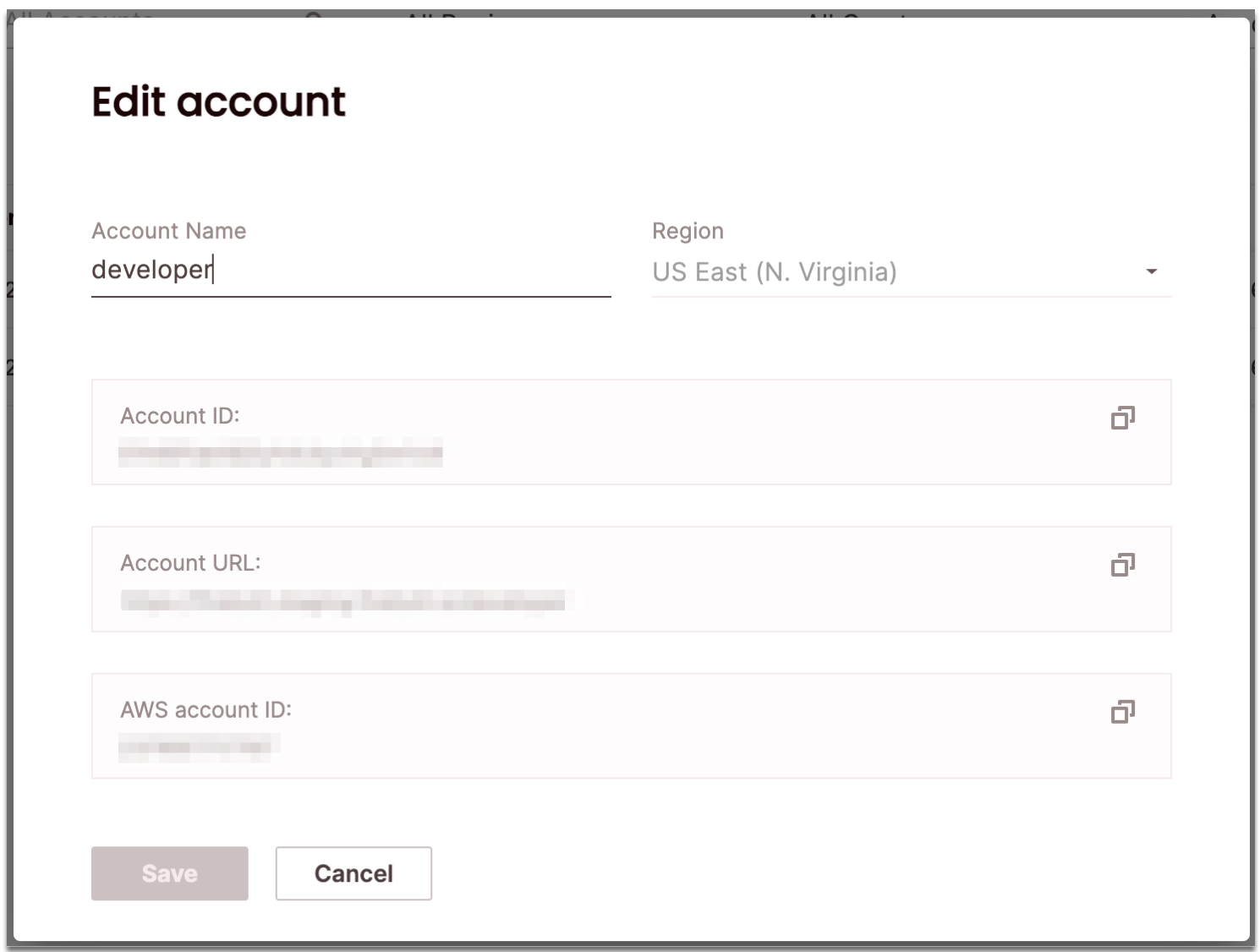
2. Search for the relevant account using the top search filters or by scrolling through the accounts list. Hover over the right-most column to make the account menu appear then choose **Edit account**.
Edit the name of the account.
3. Choose **Save**.
Then you will see your new account on the **Accounts management** page.
There can be up to 20 accounts per organization and you can use `CREATE ACCOUNT` 25 times. If you have a need for additional account creations beyond this limit, contact [Firebolt Support](/managed-service/support) for assistance. Our team can provide guidance and, if appropriate, adjust your account settings to accommodate your needs.
## Edit an existing account
Editing an account requires the account\_admin or org\_admin role.
### SQL
To edit an existing account using SQL, use the [ALTER ACCOUNT](/reference-sql/commands/data-definition/alter-account) statement. For example:
```sql theme={"theme":{"light":"css-variables","dark":"css-variables"}}
ALTER ACCOUNT dev RENAME TO staging;
```
### UI
To edit an account via the UI:
1. Click **Configure** to open the configure space, then choose **Accounts** from the menu.
2. Search for the relevant account using the top search filters or by scrolling through the accounts list. Hover over the right-most column to make the account menu appear then choose **Edit account**.
Edit the name of the account.
3. Choose **Save**.
 ## Delete an existing account
Deleting an account requires the account\_admin or org\_admin role.
### SQL
To delete an existing account using SQL, use the [DROP ACCOUNT](/reference-sql/commands/data-definition/drop-account) statement. For example:
```sql theme={"theme":{"light":"css-variables","dark":"css-variables"}}
DROP ACCOUNT dev;
```
### UI
To delete an account via the UI:
1. Click **Configure** to open the configure space, then choose **Accounts** from the menu.
2. Search for the relevant account using the top search filters or by scrolling through the accounts list. Hover over the right-most column to make the account menu appear then choose **Delete account**.
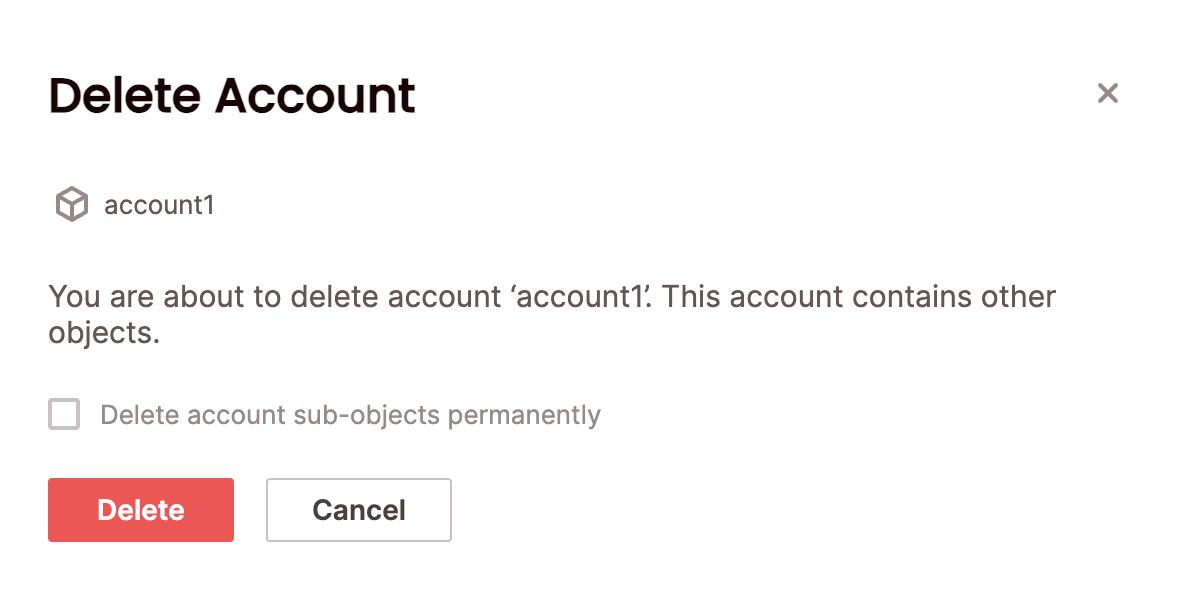
If your account is not empty (for example, if it contains other objects such as users/databases/engines/etc.), you will need to confirm that you will also delete the sub-objects by selecting **Delete account sub-objects permanently**.
3. Choose **Confirm**.
## Delete an existing account
Deleting an account requires the account\_admin or org\_admin role.
### SQL
To delete an existing account using SQL, use the [DROP ACCOUNT](/reference-sql/commands/data-definition/drop-account) statement. For example:
```sql theme={"theme":{"light":"css-variables","dark":"css-variables"}}
DROP ACCOUNT dev;
```
### UI
To delete an account via the UI:
1. Click **Configure** to open the configure space, then choose **Accounts** from the menu.
2. Search for the relevant account using the top search filters or by scrolling through the accounts list. Hover over the right-most column to make the account menu appear then choose **Delete account**.
If your account is not empty (for example, if it contains other objects such as users/databases/engines/etc.), you will need to confirm that you will also delete the sub-objects by selecting **Delete account sub-objects permanently**.
3. Choose **Confirm**.
 The account will be removed from the **Accounts management** page.
## Switch accounts
To switch the account you are using:
### UI
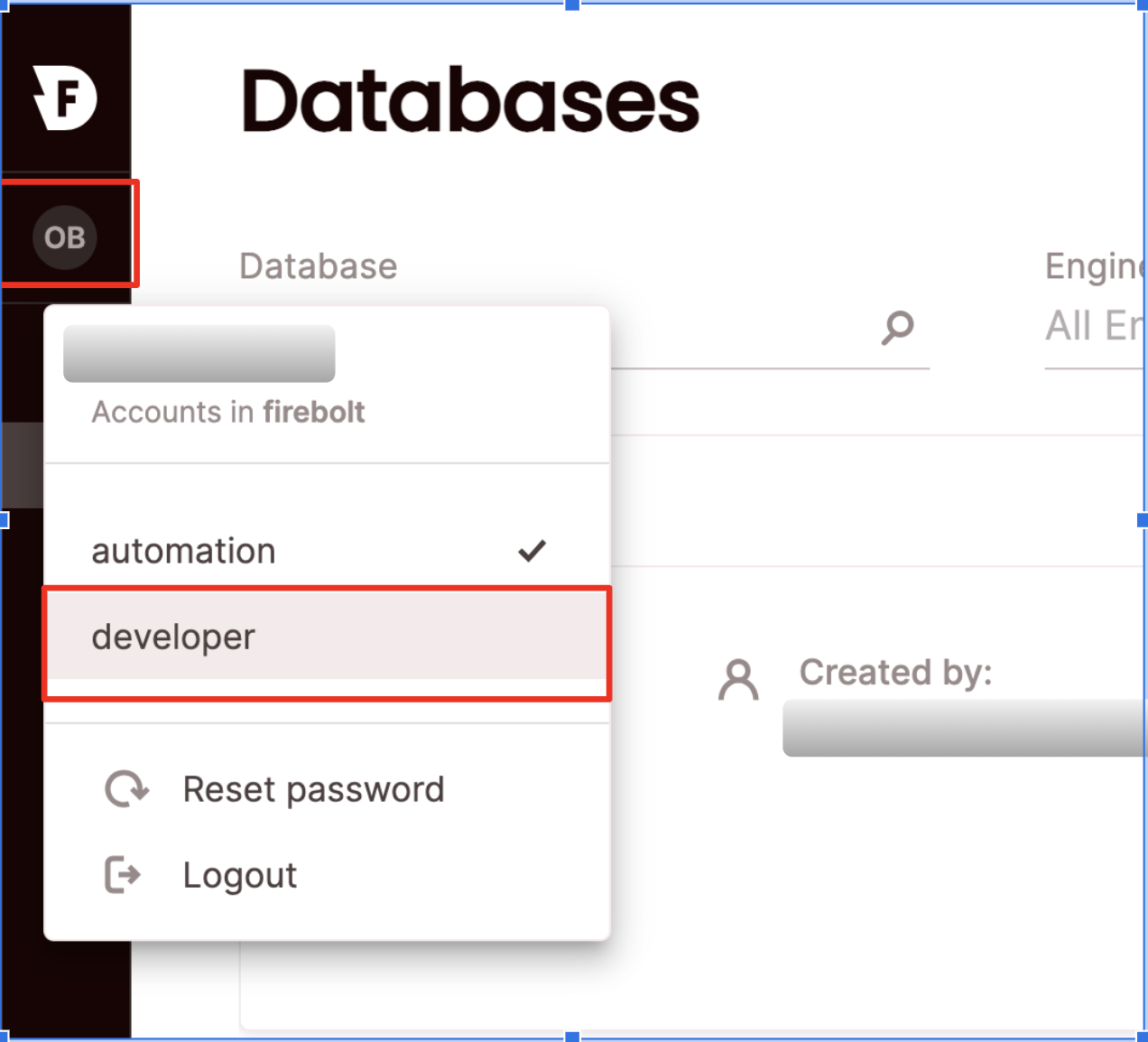
Click on your login button - the current account will be marked. Choose an account you would like to switch to.
The account will be removed from the **Accounts management** page.
## Switch accounts
To switch the account you are using:
### UI
Click on your login button - the current account will be marked. Choose an account you would like to switch to.