> ## Documentation Index
> Fetch the complete documentation index at: https://docs.firebolt.io/llms.txt
> Use this file to discover all available pages before exploring further.
> Connecting AWS QuickSight and Firebolt via PostgreSQL interface.
# AWS QuickSight
🧪 **Preview (Beta)**
Suitable for production read workloads.
Most PostgreSQL driver features are supported; some PostgreSQL features may not yet be tested and could behave differently or not work in some tools.
 [AWS QuickSight](https://aws.amazon.com/quicksight/) is a fast, cloud-powered business intelligence service that makes it easy to deliver insights to everyone in your organization. You can use QuickSight to create and publish interactive dashboards, perform ad-hoc analysis, and get business insights from your data.
This guide shows you how to connect AWS QuickSight to Firebolt using the PostgreSQL-compatible interface.
ℹ️ **Network access requirement**
[AWS QuickSight](https://aws.amazon.com/quicksight/) is a fast, cloud-powered business intelligence service that makes it easy to deliver insights to everyone in your organization. You can use QuickSight to create and publish interactive dashboards, perform ad-hoc analysis, and get business insights from your data.
This guide shows you how to connect AWS QuickSight to Firebolt using the PostgreSQL-compatible interface.
ℹ️ **Network access requirement**
QuickSight does not support mutual TLS (mTLS). In most cases, connections work without additional setup.
If you encounter connectivity issues, your QuickSight IP address may need to be allowlisted by Firebolt. See [Allowlisting QuickSight IP Addresses](#allowlisting-quicksight-ip-addresses).
## Step 1: Create a New Data Source
⚠️ QuickSight limitations (important)
AWS QuickSight enforces a PostgreSQL-style limit on the username length.
The full username value: `::` must be 63 characters or fewer.
If this limit is exceeded, QuickSight fails with a generic
“Something went wrong” error and the connection request does not reach Firebolt.
Service account ID requirement
Firebolt service accounts with a 57-character client ID cannot be used with QuickSight.
To connect QuickSight to Firebolt, you must use a service account with a shorter client ID (26 characters).
If the service account you are using has a 57-character client ID,
[create a new service account](/managed-service/organization/commands/create-service-account) with a shorter ID and use it for the connection.
Engine name length
If the combined username exceeds 63 characters due to a long engine name,
rename the engine to a shorter name for use with QuickSight.
These constraints are specific to QuickSight and PostgreSQL compatibility,
not Firebolt itself.
1. From the left navigation pane, choose **Datasets**.
2. Select the **Data sources** tab.
3. Choose **Create data source** (top right).
4. Choose the **PostgreSQL** data source card.
 You should see the following data source creation modal.
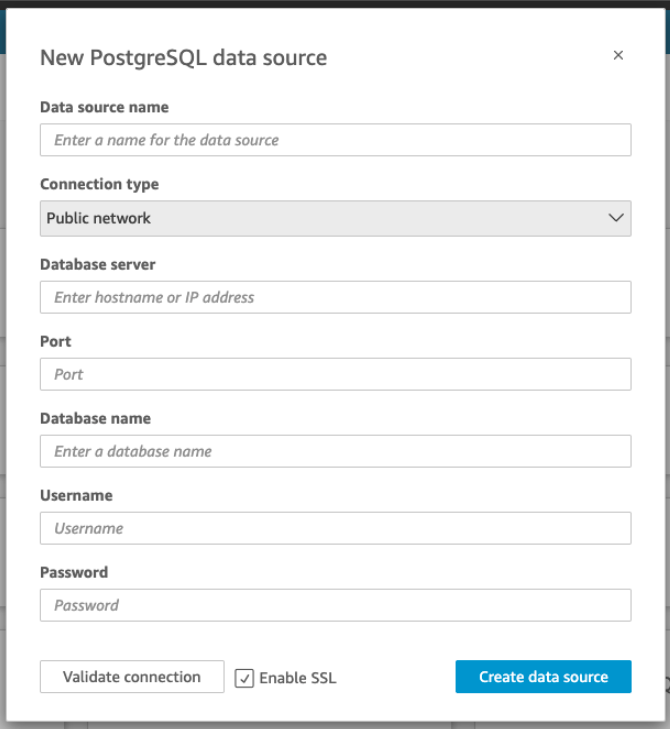 5. For **Data source name**, enter a descriptive name for your Firebolt data source connection. Because you can create many datasets from a connection to Firebolt, it's best to keep the name simple.
6. For **Connection type**, only Public is available so leave it as is.
7. Fill out the connection parameters using the values specified in the following table:
| Field | Value |
| ----------------- | --------------------------------------------------- |
| **Host** | `pg..app.firebolt.io` |
| **Port** | `5432` |
| **Database name** | `` |
| **Username** | `::` |
| **Password** | Service account secret |
#### Host details
When using Firebolt's **PostgreSQL-compatible interface**, the **host URL is based only on the region**.
Host URL Format: `pg..app.firebolt.io`
* `` — The region your account is hosted in (e.g., `us-east-1`)
* How to Find Your Region: Use this SQL query in Firebolt to get the region for your account:
```sql theme={"theme":{"light":"css-variables","dark":"css-variables"}}
SELECT region FROM information_schema.accounts WHERE account_name = '';
```
#### User field details
Unlike traditional PostgreSQL databases, Firebolt uses a composite string in the User field to specify:
* Account name
* Engine name
* Service account ID
These are joined using `:` separators in a single string:
```
::
```
For example, if your account name is `my_account`, your engine name is `analytics_engine`, and your service account id is `fbcid_xxx` you would enter `my_account:analytics_engine:fbcid_xxx`.
8. To verify the connection is working, choose **Validate** connection.
9. To finish and create the data source, choose **Create** data source.
## Step 2: Create a QuickSight Dataset
After you create a Firebolt data source, you can use it to create a dataset for analysis.
To create a dataset using a Firebolt data source, follow these steps:
1. From the left navigation pane, choose **Datasets**.
2. Choose **Create dataset** (top right).
3. From the list of existing data sources, select the Firebolt data source you created.
4. Choose **Select**.
5. To specify the table you want to connect to, first select the **Schema** you want to use.
6. For **Tables**, choose the table that you want to use.
If you prefer to use your own SQL statement, select **Use custom SQL**.
7. When prompted to choose a dataset creation mode, select **Directly query your data**.
Firebolt is designed to provide high-performance query execution, so Direct Query is recommended in most cases.
(Optional) You may choose **Import to SPICE** if you specifically require SPICE-based features or caching behavior.
8. Choose **Edit/Preview**.
9. (Optional) To add more data, use the following steps:
* Choose **Add data** in the top right.
* To connect to different data, choose **Switch data source**, and choose a different dataset.
* Follow the prompts to finish adding data.
* After adding new data to the same dataset, choose **Configure this join** (the two red dots). Set up a join for each additional table.
10. If you want to add calculated fields, choose **Add calculated field**.
11. Clear the check box for any fields that you want to omit.
12. Update any data types that you want to change.
13. When you are done, choose **Save** to save and close the dataset.
## Allowlisting QuickSight IP Addresses
Amazon QuickSight does not support mutual TLS (mTLS).
If you experience connectivity issues when connecting QuickSight to Firebolt, QuickSight network access for your AWS region may need to be allowlisted by Firebolt.
### Request allowlisting from Firebolt Support
Contact Firebolt Support and request allowlisting, including the following information:
See how to contact [Firebolt Support and severity guidelines](/support/severity-guidelines)
* Your name and email address
* Your organization name
* Tool: **Amazon QuickSight**
* QuickSight AWS region (for example: `us-east-1`)
After allowlisting is completed, return to QuickSight and retry the connection.
## Calculated fields compatibility
QuickSight supports creating calculated fields using built-in functions.
Most calculated field functions work as expected with Firebolt.
However, in rare cases, a calculated field function may generate SQL that is not supported by Firebolt’s PostgreSQL-compatible interface.
If you encounter an error with a calculated field, use **Custom SQL** in QuickSight and implement the logic directly as SQL instead of relying on the calculated field function.
## Additional Resources
For more information about AWS QuickSight configuration and visualisation, refer to the AWS [documentaion](https://docs.aws.amazon.com/quicksuite/latest/userguide/working-with-visuals.html).
5. For **Data source name**, enter a descriptive name for your Firebolt data source connection. Because you can create many datasets from a connection to Firebolt, it's best to keep the name simple.
6. For **Connection type**, only Public is available so leave it as is.
7. Fill out the connection parameters using the values specified in the following table:
| Field | Value |
| ----------------- | --------------------------------------------------- |
| **Host** | `pg..app.firebolt.io` |
| **Port** | `5432` |
| **Database name** | `` |
| **Username** | `::` |
| **Password** | Service account secret |
#### Host details
When using Firebolt's **PostgreSQL-compatible interface**, the **host URL is based only on the region**.
Host URL Format: `pg..app.firebolt.io`
* `` — The region your account is hosted in (e.g., `us-east-1`)
* How to Find Your Region: Use this SQL query in Firebolt to get the region for your account:
```sql theme={"theme":{"light":"css-variables","dark":"css-variables"}}
SELECT region FROM information_schema.accounts WHERE account_name = '';
```
#### User field details
Unlike traditional PostgreSQL databases, Firebolt uses a composite string in the User field to specify:
* Account name
* Engine name
* Service account ID
These are joined using `:` separators in a single string:
```
::
```
For example, if your account name is `my_account`, your engine name is `analytics_engine`, and your service account id is `fbcid_xxx` you would enter `my_account:analytics_engine:fbcid_xxx`.
8. To verify the connection is working, choose **Validate** connection.
9. To finish and create the data source, choose **Create** data source.
## Step 2: Create a QuickSight Dataset
After you create a Firebolt data source, you can use it to create a dataset for analysis.
To create a dataset using a Firebolt data source, follow these steps:
1. From the left navigation pane, choose **Datasets**.
2. Choose **Create dataset** (top right).
3. From the list of existing data sources, select the Firebolt data source you created.
4. Choose **Select**.
5. To specify the table you want to connect to, first select the **Schema** you want to use.
6. For **Tables**, choose the table that you want to use.
If you prefer to use your own SQL statement, select **Use custom SQL**.
7. When prompted to choose a dataset creation mode, select **Directly query your data**.
Firebolt is designed to provide high-performance query execution, so Direct Query is recommended in most cases.
(Optional) You may choose **Import to SPICE** if you specifically require SPICE-based features or caching behavior.
8. Choose **Edit/Preview**.
9. (Optional) To add more data, use the following steps:
* Choose **Add data** in the top right.
* To connect to different data, choose **Switch data source**, and choose a different dataset.
* Follow the prompts to finish adding data.
* After adding new data to the same dataset, choose **Configure this join** (the two red dots). Set up a join for each additional table.
10. If you want to add calculated fields, choose **Add calculated field**.
11. Clear the check box for any fields that you want to omit.
12. Update any data types that you want to change.
13. When you are done, choose **Save** to save and close the dataset.
## Allowlisting QuickSight IP Addresses
Amazon QuickSight does not support mutual TLS (mTLS).
If you experience connectivity issues when connecting QuickSight to Firebolt, QuickSight network access for your AWS region may need to be allowlisted by Firebolt.
### Request allowlisting from Firebolt Support
Contact Firebolt Support and request allowlisting, including the following information:
See how to contact [Firebolt Support and severity guidelines](/support/severity-guidelines)
* Your name and email address
* Your organization name
* Tool: **Amazon QuickSight**
* QuickSight AWS region (for example: `us-east-1`)
After allowlisting is completed, return to QuickSight and retry the connection.
## Calculated fields compatibility
QuickSight supports creating calculated fields using built-in functions.
Most calculated field functions work as expected with Firebolt.
However, in rare cases, a calculated field function may generate SQL that is not supported by Firebolt’s PostgreSQL-compatible interface.
If you encounter an error with a calculated field, use **Custom SQL** in QuickSight and implement the logic directly as SQL instead of relying on the calculated field function.
## Additional Resources
For more information about AWS QuickSight configuration and visualisation, refer to the AWS [documentaion](https://docs.aws.amazon.com/quicksuite/latest/userguide/working-with-visuals.html).